

Desk Link正在加载产品官网…
Explore Link · ARC'TYNOVA · Desk Link
Skip to content
My Link
ProductCapabilities and deliveryLinesPlansDownloadHelpMy Link
Sign in

Manage lines, connections,
and teams in one place

Browse lines by region, bring your own nodes, and connect in a dedicated work window.

Download Desk LinkBrowse lines
Windows x64
Lines and resourcesConnections and routingTeams and businessMy LinkClient maintenance

Lines and resources

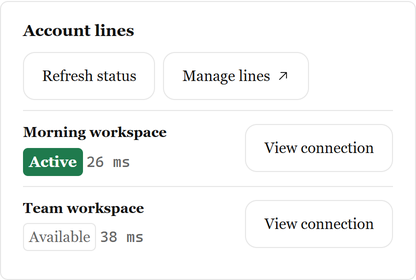
Choose a line from the directory or organize what you already have. Check availability and latency before choosing a connection.
  • Filter the public directory by region
  • Compare bandwidth, data, and billing periods
  • Import your own nodes and subscriptions
  • Check node latency and availability
  • Find delivered lines in your account
Desktop resources page showing account lines and their service status

Connections and routing

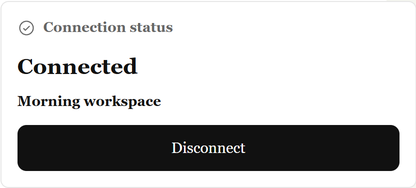
Choose a line and see its state on the connection page. Work-window proxying is limited to that window.
  • Use an authorized line in a separate work window
  • Adjust routing rules and connection preferences
  • See connection status and check results
  • Review connection activity in the log
  • Connect with a delivered, authorized configuration
Desktop connection page showing the selected line, status, and connection action

Teams and business

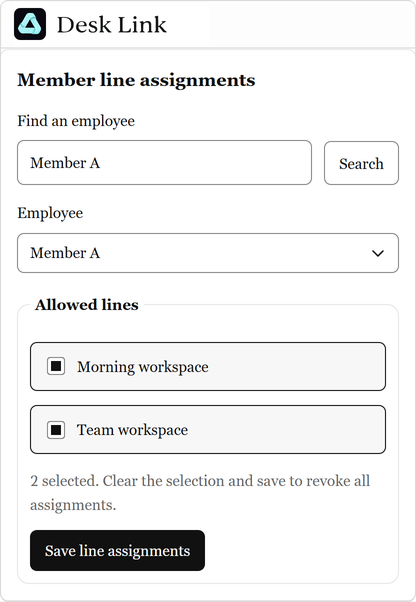
Admins assign lines in the business workspace. Authorized members can open a work window in the desktop app.
  • Find members by name or email
  • Grant or revoke a member's line access
  • See the lines assigned to you
  • Open a separate work window on an assigned line
Business workspace with an employee selected and line assignments visible

My Link

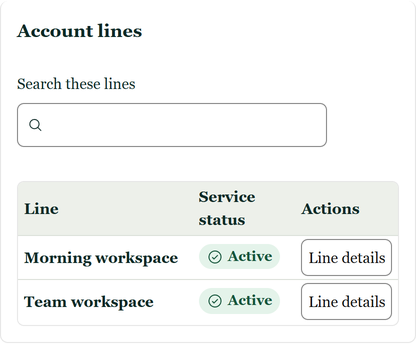
Open the web workspace with your Desk account. View lines, existing orders, and delivery progress together.
  • Sign in to see your lines and their service status
  • Open a line to review its service details
  • Review existing requests and order records
  • Read setup and connection guides in Help
My Link web page with account lines, service status, and detail actions

Client maintenance

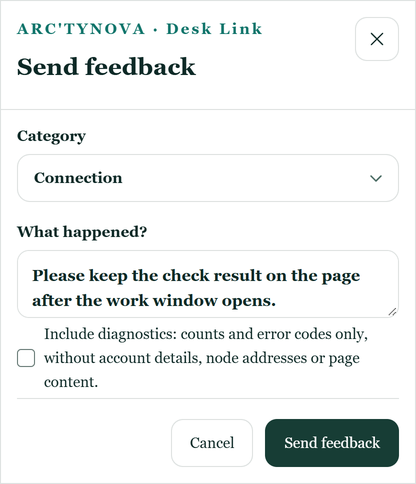
Check connections and back up local settings in the app. When sending feedback, you can choose whether to attach a diagnostic summary.
  • Review connection diagnostics and activity
  • Export a local diagnostic file
  • Back up and restore settings manually
  • Send feedback and follow its progress
Desktop feedback form with the optional diagnostic summary

From choosing a line to connecting

  1. Choose a region

    Filter the directory by the region you need.

  2. Review the specs

    Compare bandwidth, data, and billing periods.

  3. Check delivery

    Sign in with the account used for delivery.

  4. Open a work window

    Choose an available line and check its status.

  5. Assign team lines

    Authorized admins can grant access by member.

Where to use Desk Link

Windows x64

Download the desktop app to manage lines, network profiles, and connections.

Web

Browse lines, get help, or sign in to My Link to see your account records.

Phone setup

Generate a QR code for a supported personal node and import it into a compatible mobile app.

Find the right line for your work

Start with the line directory or download the Windows client.

Download Desk LinkBrowse lines
ARC'TYNOVAARC'TYNOVA© 2026 Arc'tynova
Capabilities and deliveryAll Desk productsPrivacyTermsSupport

Contact us

support@arctynovadesk.com

Send email
Account Center